
Sample Event - Multi-Day Conference
We have created a simple, yet effective Multi-Day Conference to show you how easy it can be to create your own event.
- The first step in creating your multi-day conference, is to setup the Event Details.
- Once you have completed setting up your event description, time, location and demographic information, setup up an optional Waiver.
- Once this is completed, proceed to setup your Payment Options and Confirmation Messages.
- Once you have completed the above steps, proceed to the
Registrants tab. In this section, you will enter
your Registrant
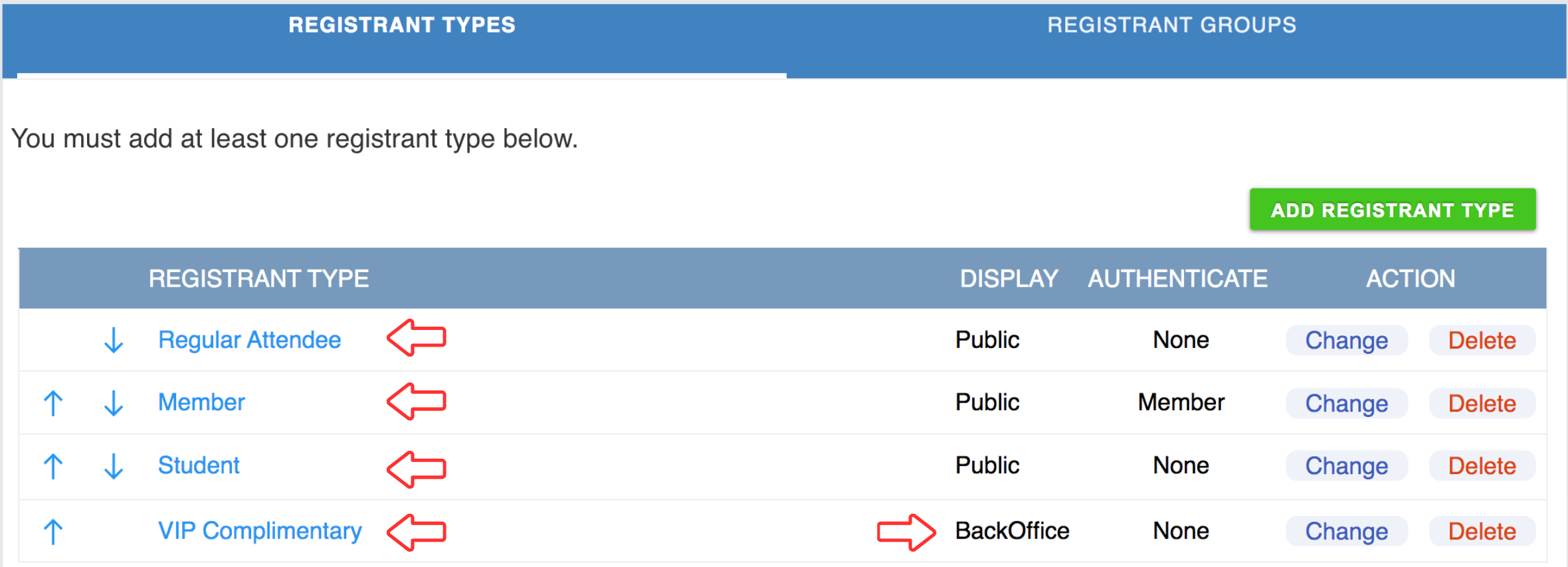
Types. In our example, we have created the following four types:
Regular Attendee, Member, Student and VIP
Complimentary. The first 3 will be visible to the public. We
have chosen to keep the VIP Complimentary registration 'Hidden' in
the GiftTool BackOffice. This is done in order to facilitate the
registration of certain guests or speakers who may be receiving a
complimentary admission to your event. These guests would need to be
registered through Manual
Registration.
- Next you will need to create your Registration
Options. These are the options your registrants have to choose
from, when registering for your Conference. In our example, we have
chosen to go with four options and one Package.
The Package feature allows you to bundle several options into one
package and offer it at a discounted price. We have created the
following options: Thursday Evening Welcome Reception &
Dinner, Day 1 Pass, Day 2 Pass, Day 3 Pass. (See below Example
1.1). We have decided to offer a Package deal that includes all
four options together and will offer it at different prices to the
different Registrant Types. (See below Example 1.2)
(Example 1.1)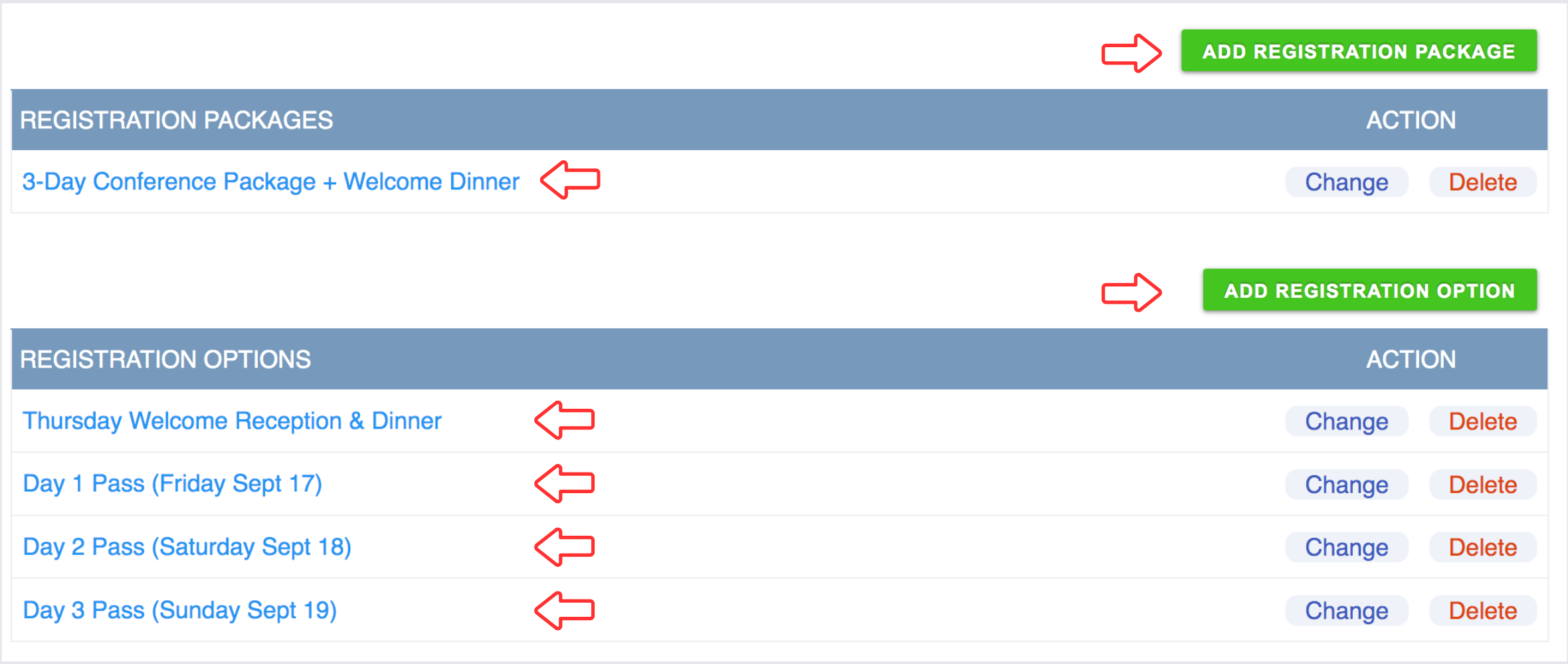
(Example 1.2)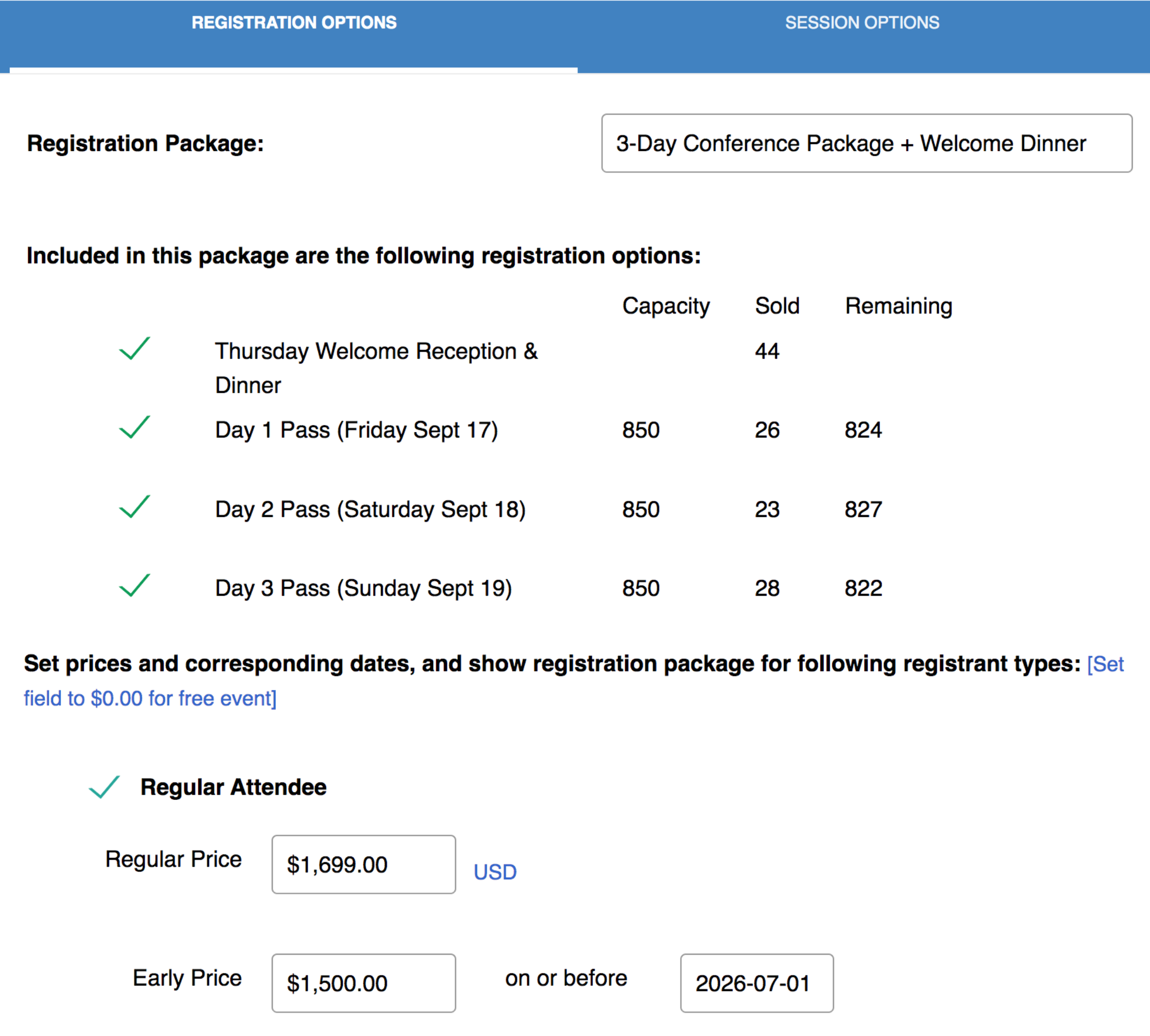
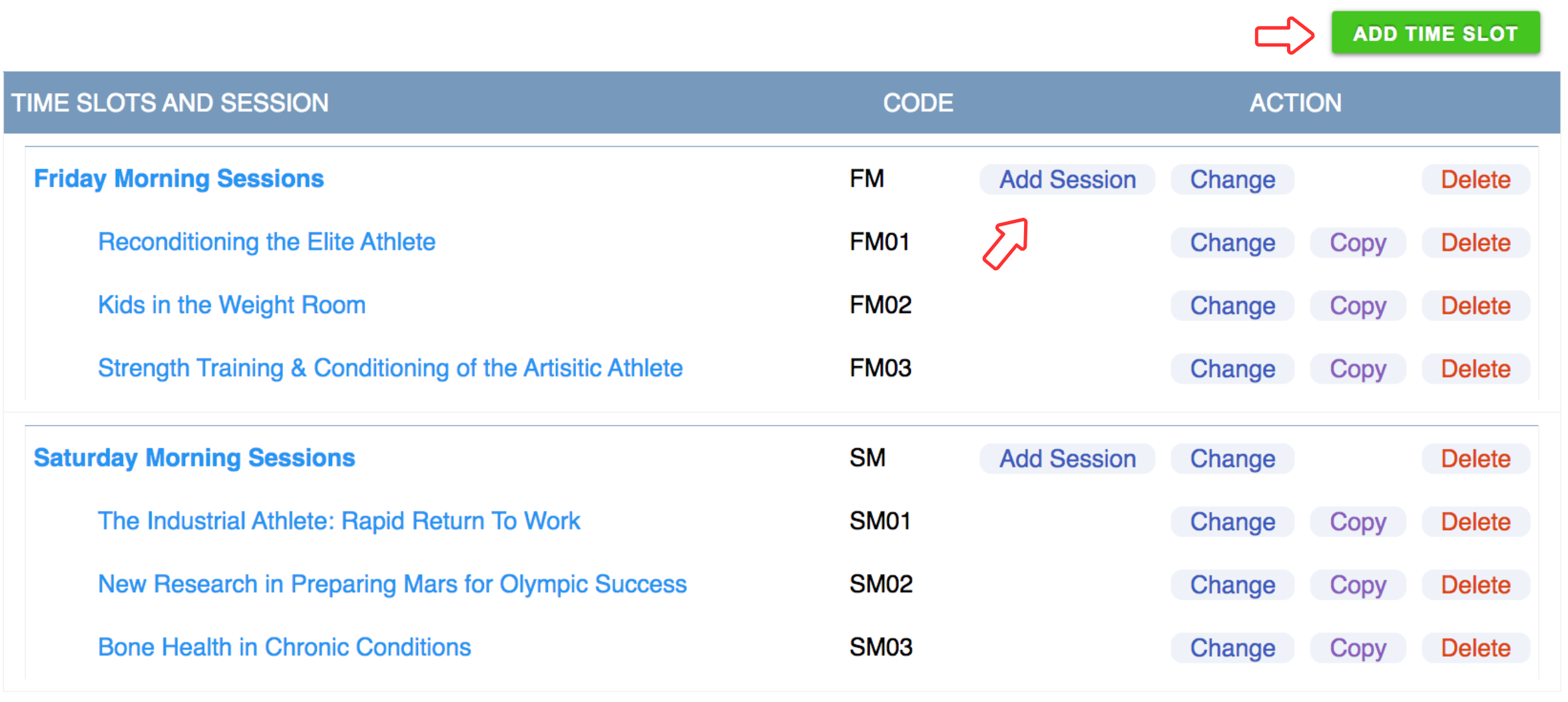
- Now that the Registration Types and Registration Options are
setup, you can optionally add Session
Options. NOTE: Before adding a session, you
have to create a time slot. (See below)
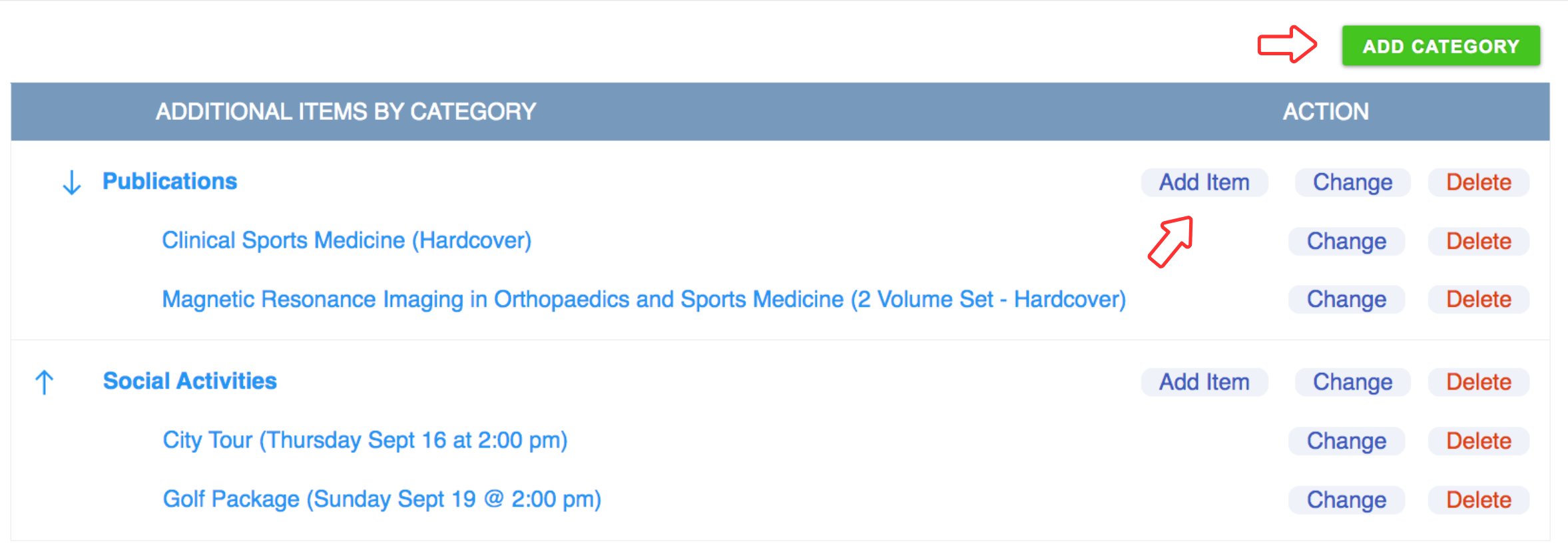
- Using the Additional
Items tab you can offer event-related items during registration,
and organize your items into categories. Create the category, then
add the items.
- Optional: If your conference offers Lodging it can be setup using the Lodging tab.
- Using the Ask
Questions section, you can ask questions of your registrants.
For example, questions regarding food choice (ie. Vegetarian?
Y/N), accessibility needs, t-shirt size... Choose your question
type (multiple choice or text/numeric), add your question, choices
and response format. You decide if you want to show the question
to all or some of your registrants.
- Remember to click "Save as Draft/Active".
Feel free to customize your Multi-Day Conference to your specifications.
Good luck with your event!